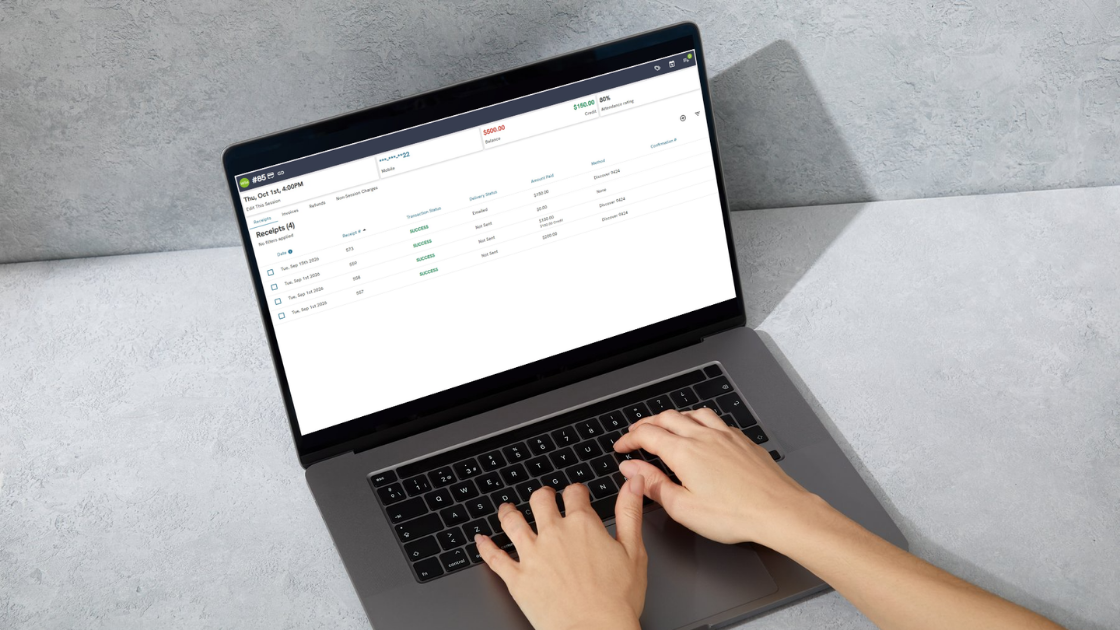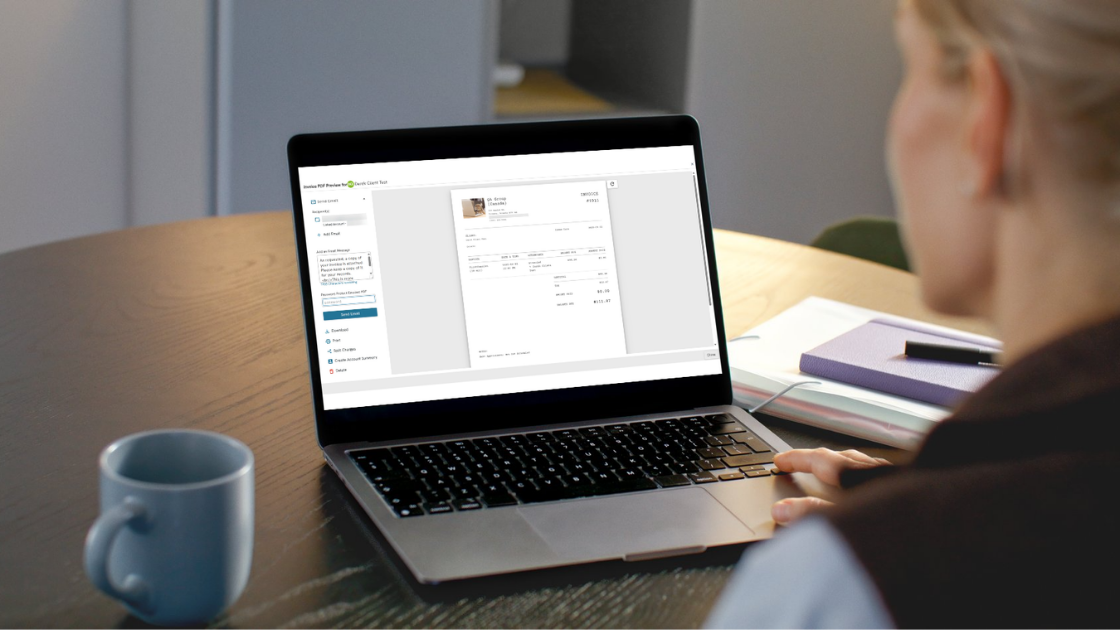
Many clinicians are looking for ways to reduce billing administration without sacrificing control of their finances. Automated invoicing, payment collection, and autopay settings can help simplify day-to-day operations while creating a smoother experience for clients.
During our Client Billing and Integrated Payments webinar, attendees asked a number of questions about autopay, automation settings, payment timing, and insurance-related billing workflows. Here are the answers.
Automation & Autopay
Owl Practice Help Centre Articles: Billing
Q: How do I set up autopay or auto-billing with clients?
A: You can have default clinic settings to automatically invoice and process payment by navigating to Settings → Payment Details → Basics. You can also bulk update clients to enroll them in auto pay. Additionally, you can update clients invoicing and payment processing settings directly by going to the client profile → Contact & Clinical → Account Settings.
Q: How does auto billing work with Stripe specifically?
A: There are two methods for auto pay: immediately or nightly. If a client is set to process payment immediately, then payment is processed for the saved method of payment on their profile immediately after invoice creation is complete. If a client is set to process payment nightly, then payment is processed for the saved method of payment on their profile in a nightly batch between 12am-2am local time.
Q: Can billing happen automatically right after a session ends?
A: Yes! You can set a client with a saved method of payment to “process immediately,” so after a session is completed with an invoice generated, the payment will process.
Q: Can insurance be billed first, with the remaining balance charged automatically to the payment method on file?
A: Currently, the option to automatically process the client’s responsible amount after a claim has been processed successfully is not available. The Product team is aware of this area of opportunity. We’re always open to customer suggestions and love hearing about your experience with Owl Practice. Your feedback is important because it helps us continue developing useful new features.
Q: I take payment at the time of booking to avoid no-shows. How do I set that up in the system?
A: If you allow clients to book through the client portal, you can configure it in a way that requires a payment method on file prior to booking. That will ensure that you have a method of payment to charge even in the event of a no-show or late cancel.
Put Your Billing on Autopilot
Automation can take much of the manual work out of billing, helping you create invoices, collect payments, and manage client balances with less day-to-day effort. By setting up autopay and billing automations that fit your workflow, you can spend less time on administrative tasks and more time supporting your clients.
Whether you’re just getting started with automated billing or looking to fine-tune your existing processes, Owl Practice provides flexible tools to help you stay in control while reducing administrative overhead.
Whether you’re looking to improve automations or get paid faster, our Help Centre resources and support team are here to help.
If you missed the webinar, or would to rewatch it at your convenience, you can find the “Mastering Client Billing with Integrated Payments” session here.
Not using Owl Practice? Start a free 14-day trial today or book a demo with one of our experts to see how automated invoicing, autopay, and Integrated Payments can help streamline your practice’s billing workflow.